
第一次授权First permissions
基础语音输入只需要麦克风权限。AI 看屏幕是可选能力,只会在你主动开启并使用时请求屏幕录制权限。 Basic voice input only needs Microphone access. AI Screen Reading is optional and requests Screen Recording only when you enable and use it.
- 麦克风:Microphone: 用于录音和识别。records your speech for recognition.
- 屏幕录制:Screen Recording: 仅在你主动使用“AI 看屏幕”时读取当前窗口可见文字。is used only when you explicitly use screen context to read visible text from the current window.
第一次语音输入Your first dictation
打开一个你平时会输入文字的 App,例如聊天工具、团队沟通工具、备忘录、邮件或浏览器搜索框。点击输入框,让光标停在里面,然后按下快捷键开始说话。 Open an app where you normally type, such as chat, team communication, notes, email, or a browser search box. Click the text field, then press your shortcut.
“” For the first test, say a short sentence. The transcript enters the active field automatically; once that works, try longer messages.
点按快捷键Toggle shortcuts
当前默认设置里,F6 用于快速输入,F7 用于 AI 指令。两个键分开后,普通输入保持本地极速,AI 任务则由 F7 明确触发。 By default, F6 is for fast dictation and F7 is for AI commands. Keeping them separate keeps normal input fast and local.
短按:开始和结束Tap: start and stop
按一次开始录音,说完后再按一次结束。Echo 会转写并把结果输入当前文本框。 Press once to start and again to stop. Echo transcribes and inserts the result into the active text field.
AI 指令键AI command key
AI 指令键默认是 F7。它和快速输入键分开:F6 仍然走本地识别,不会自动调用云端;只有你按 F7 并说出整理、问答、翻译、剪贴板处理或看屏幕需求时,Echo 才会启动 AI 流程。 The AI command key defaults to F7. It is separate from fast dictation: F6 stays local, and Echo only starts AI when you press F7 and request cleanup, answering, translation, clipboard processing, or screen context.
- 选中文本后按 AI 指令键:适合改写、润色、翻译、总结选区。With text selected: rewrite, polish, translate, or summarize the selection.
- 未选中文本时按 AI 指令键:适合整理长语音、写回复、问问题。With no selection: structure long speech, draft replies, or ask questions.
- 说“看当前窗口 / 总结这个页面”:触发屏幕可见文字识别。Say “look at the current window” or “summarize this page” to use visible screen text.
AI 翻译AI translation
翻译由 AI 指令键触发,支持单次翻译、选区翻译和持续翻译。单次翻译把目标语言和内容直接说在同一句里;只有持续翻译会进入长期状态。 Translation is triggered by the AI command key. Echo supports one-off translation, selected-text translation, and continuous translation. One-off translation includes the target language and source text in one command; only continuous translation stays active.
单句翻译Translate one sentence
按 F7 后直接说:“把明天见翻译成日语”。Echo 会显示翻译结果并复制到剪贴板。这是一轮完成,不需要再按一次快捷键。 Press F7 and say: “translate see you tomorrow to Japanese.” Echo shows the translation and copies it to the clipboard. This finishes in one turn.
一次翻译长内容Translate longer text once
内容较长时,也直接在同一轮里说完,例如:“把下面这段话翻译成英文,我要说的内容是……”。Echo 会把后面的内容作为原文翻译;本次完成后自动恢复普通 AI 指令,不进入持续翻译。 For longer text, still say it in the same turn, for example: “translate the following into English: ...”. Echo treats the following content as the source text, then returns to normal AI commands after this one translation.
持续翻译Continuous translation
按 F7 说:“接下来都翻译成英文”。之后进入持续翻译状态,后续输入会按这个目标语言输出。要退出时说“结束翻译 / 停止翻译 / 取消翻译”。 Press F7 and say: “translate everything next into English.” Echo enters continuous translation mode, and later input is output in that target language until you say “stop translation.”
搜索后回答Search-backed answers
未选中文本时,以“请问 / 问一下”开头提问,Echo 会先判断是否需要实时资料。需要时,它可以使用你配置的搜索能力补充信息,再把答案放在结果窗口中。 When no text is selected, start with an ask-style prompt. Echo decides whether fresh information is useful and can use your configured search capability before showing the answer.
AI 看屏幕Screen context
当你明确说“看当前窗口 / 总结这个页面 / 看屏幕帮我回复”时,Echo 会截取当前窗口,并在本地识别可见文字,然后把文字上下文交给 AI。它不会在普通快速输入时自动读取屏幕。 When you explicitly ask Echo to look at the current window or summarize the page, it captures the current window, recognizes visible text locally, and passes that text context to AI. Normal fast dictation does not read the screen.
这个能力需要屏幕录制权限。你可以在设置里关闭“AI 看屏幕”,需要时再开启。 This feature requires Screen Recording permission. You can keep screen context off and enable it only when needed.
剪贴板处理Clipboard processing
当你明确提到“剪贴板 / 刚复制的内容 / 复制内容”时,Echo 会处理当前剪贴板文本。适合把网页、邮件或文档里复制的内容整理成要点、回复或摘要。 When you explicitly mention clipboard or copied content, Echo processes the current clipboard text. Use it to turn copied web, email, or document text into bullets, replies, or summaries.
术语词典Dictionary
如果你经常说产品名、人名、技术词或中英混合表达,建议把它们加入个人术语词典。词典会参与本地后处理,让输出更贴近你的真实写法。 If you often use product names, names, technical terms, or mixed Chinese-English speech, add them to your personal dictionary. Echo uses it during local cleanup.
Pro 工作套件Pro work suites
工作套件是 Pro 的核心能力之一。它把常用场景规则和官方模板按职业组织好,你不需要每次从空白提示词开始配置。 Work suites are a core Pro feature. They package app rules and official templates by work type, so you do not start from a blank prompt every time.
- 程序员套件:Developer Suite: 适合代码口述、终端命令、Bug 描述和提交说明。for coding notes, terminal commands, bug reports, and commit messages.
- 办公套件:Office Suite: 适合邮件、周报、会议纪要、工作文档和正式沟通。for email, weekly reports, meeting notes, work docs, and formal communication.
- 创作者套件:Creator Suite: 适合口播稿、标题改写、内容大纲和社媒草稿。for scripts, title rewrites, content outlines, and social drafts.
- 产品经理套件:Product Suite: 适合需求描述、用户反馈、PRD 片段和版本说明。for requirement briefs, user feedback, PRD snippets, and release notes.
- 销售客服套件:Sales & Support Suite: 适合客户回复、跟进记录、异议处理和通话小结。for customer replies, follow-ups, objection handling, and call summaries.
- 学习研究套件:Study & Research Suite: 适合阅读笔记、概念卡片、资料摘要和复习提纲。for reading notes, concept cards, source summaries, and study outlines.
场景适配规则App-aware rules
Pro 可以按当前 App 自动选择处理方式。录音开始时 Echo 会识别目标 App,命中已启用规则后,自动选择对应的整理方式;没有命中时继续跟随全局设置。 Pro can choose the cleanup behavior by current app. Echo detects the target app at recording start, applies the enabled matching rule, and falls back to global settings when nothing matches.
- 聊天:保留自然语气,不把消息写成正式文档。Chat: keeps messages natural instead of document-like.
- 邮件:更正式、更清楚,适合对外沟通。Mail: clearer and more formal for external communication.
- 文档和笔记:整理成段落、要点、待办或结构化说明。Documents and notes: paragraphs, bullets, action items, or structured notes.
- 代码和 AI 编程:保守纠错,保护命令、路径、变量和代码片段。Code and AI coding: conservative cleanup that preserves commands, paths, variables, and snippets.
模型配置Model setup
Echo 里和模型有关的配置可以分成三层:本地语音识别模型负责快速输入,Echo 云端语音用于 Pro 用户主动开启的云端识别,AI 模型负责搜索后回答、看屏幕、改写和总结。建议先把本地识别跑通,再按需开启云端和 AI。 Model setup in Echo has three layers: local speech recognition for fast dictation, Echo hosted speech for Pro users who enable cloud recognition, and AI models for search-backed answers, screen context, rewriting, and summarization. Start with local recognition, then enable cloud and AI features when needed.
1. 先确认本地识别模型1. Confirm the local recognition model
- 打开 Echo 设置页,进入模型或本地引擎相关区域。Open Echo Settings and go to the model or local engine section.
- App Store 版本随 App 提供本地 SenseVoice Small。若状态异常,先重启 Echo;如果你要使用更大的本地模型,再选择下载或导入已有模型。The App Store version includes local SenseVoice Small with the app. If the status looks wrong, restart Echo first; use download or import only when you want a larger local model or an existing model folder.
- F6 When the status is ready, place the cursor in a text field and test a short sentence with F6. Confirm the result enters at the active input position.
2. 使用云端语音或自配服务2. Use hosted speech or your own service
Pro 用户可以直接使用 Echo 云端语音识别,App 会把当前请求所需的音频通过 Echo 服务处理,不需要在 App Store 版本里另外创建服务商账号或填写搜索密钥。你也可以在设置中选择自配兼容服务,密钥只保存在本机钥匙串。 Pro users can use Echo hosted speech directly. The App sends only the audio needed for the active request through Echo, so the App Store version does not require a separate provider account or search key. You can also choose a compatible service of your own; its key stays in the local Keychain.
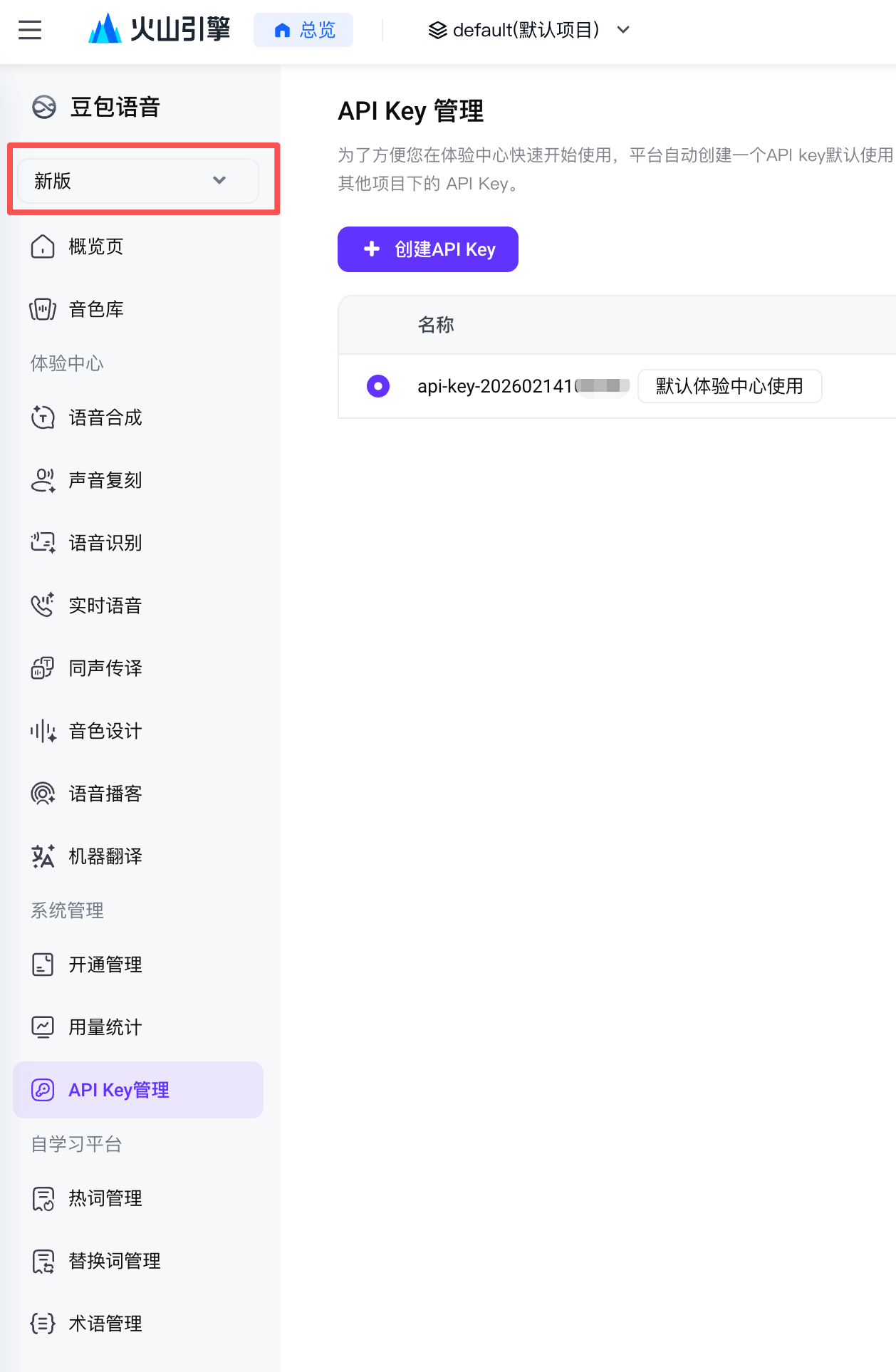
3. 兼容旧版语音配置3. Legacy speech configuration
如果你已有旧版语音模型参数,请在 Echo 中选择兼容配置方式,并确认服务商控制台中的模型名称、区域、鉴权方式和流式识别能力仍然可用。 If you already have legacy speech model parameters, choose the compatible configuration in Echo and confirm that the provider-side model name, region, authentication method, and streaming recognition capability are still valid.
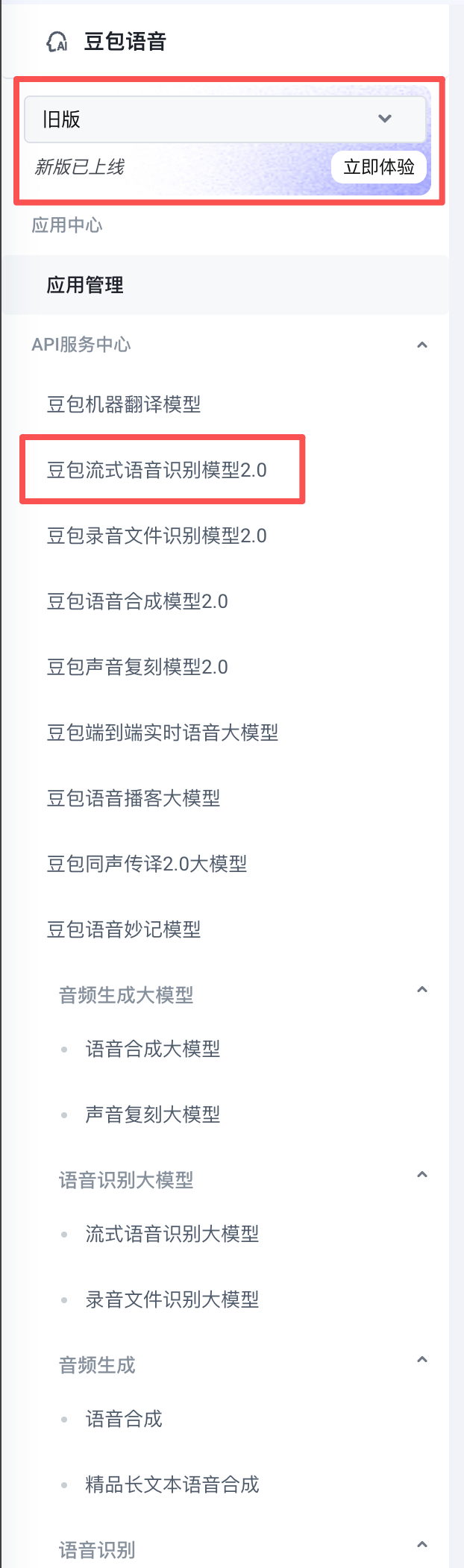
4. 配置 AI 和搜索能力4. Configure AI and search features
Pro 用户使用 Echo 托管 AI 时,AI 指令键、搜索后回答和 AI 看屏幕会通过 Echo 服务完成必要的云端处理;搜索服务不需要单独填写 API Key。自配 AI 服务仍可在设置中填写 Base URL、API Key 和模型名称,再按需开启搜索服务与屏幕上下文。 With Echo hosted AI, Pro users can use the AI command key, search-backed answers, and screen context through Echo's relay service; no separate search API key is required. You can still enter a Base URL, API key, and model name for your own AI service, then enable search and screen context as needed.
如果你使用自配模型,请按自己的服务设置模型联网能力;如果你使用 Echo 托管 AI,搜索请求由 Echo 服务处理,并按当前权益和积分规则执行。 When using your own model, configure web access according to that service. When using Echo hosted AI, Echo handles search requests under the current entitlement and credit rules.
本地模型Local models
Echo 优先使用本地 SenseVoice Small。App Store 版本会随 App 提供小型本地模型,日常快速输入不需要你另行安装;如果你需要更大的本地模型,可以从 App 内下载或导入你已经准备好的模型目录。 Echo prioritizes the local SenseVoice Small model. The App Store version includes the small local model with the app, so everyday fast dictation does not require a separate install; if you need a larger local model, you can download it in the app or import a model folder you already have.
- 如果 App Store 版显示模型未就绪,先完全退出并重新打开 Echo。If the App Store version says the model is not ready, quit and reopen Echo first.
- 如果你要换成其它本地模型,使用下载或导入已有模型。If you want to switch to another local model, use download or import.
- 如果下载被网络阻断,稍后重试或改用手动导入。If the download is blocked, retry later or import manually.
云端补强Cloud correction
云端补强不是默认必需功能。你可以关闭它,也可以设置为低置信度时才使用,或使用保守补强模式。 Cloud correction is not required by default. You can keep it off, use it only for low-confidence output, or enable conservative correction.
设置页Settings
设置页会按快捷键、麦克风、系统、AI 和关于分区。建议先确认快捷键和麦克风,再进入 AI 相关配置。 Settings are organized into Shortcut, Microphone, System, AI, and About sections. Start with shortcuts and microphone before configuring AI options.
文字没有自动输入怎么办Text was not inserted
- 确认麦克风权限已开启,并且本地模型显示为就绪。Confirm Microphone access is enabled and the local model is ready.
- 按一次 F6 开始说话,再按一次 F6 结束。Press F6 once to start speaking and again to stop.
- 在 Echo 设置中确认“自动输入”已授权;授权后仍无效时,完全退出并重新打开 Echo。Confirm Auto Input access is granted in Echo Settings. If it still does not work, quit Echo completely and reopen it.
AI 指令键没有反应AI key does not respond
- 确认默认 AI 指令键是 F7,或到设置页查看你是否改成了其它组合快捷键。Confirm the default AI key is F7, or check settings if you changed it.
- 使用 Echo 托管 AI 时确认 Pro 权益和网络可用;使用自配 AI 时,再确认 Base URL、API Key 和模型名可用。For Echo hosted AI, confirm that your Pro entitlement and network are available; for your own AI service, also confirm its Base URL, API key, and model name.
- 在“账户 → 帮助与反馈”中可打开离线 AI 功能演示,无需账号或 API Key。Open the offline AI feature demo under Account → Help; it requires no account or API key.
看屏幕不可用Screen context does not work
- 确认设置里已经开启“允许看当前窗口”。Confirm “Allow Window Reading” is enabled in settings.
- 确认 macOS 屏幕录制权限已授予 Echo,授权后建议重启 App。Confirm macOS Screen Recording permission is granted to Echo, then restart the app.
- 请明确说“看当前窗口 / 总结这个页面 / 看屏幕帮我回复”,普通快速输入不会自动读取屏幕。Ask explicitly to read the current window or summarize the page. Fast dictation does not read the screen automatically.
翻译状态没有退出Translation mode is still active
持续翻译还在生效时,按 F7 说“结束翻译 / 停止翻译 / 取消翻译”。普通单次翻译完成后不会保持翻译状态。 If continuous translation is still active, press F7 and say “stop translation.” Normal one-off translation does not keep translation mode active after it finishes.
不同 App 输出效果不一样Output differs by app
如果你开启了 Pro 工作套件或场景适配规则,这是正常现象。Echo 会根据当前 App 自动选择聊天、邮件、文档、代码等规则。你可以在设置里的“自动适配规则”中关闭某个规则或改回跟随全局。 If Pro work suites or app-aware rules are enabled, this is expected. Echo adapts output by current app. Disable or adjust a rule in Auto Rules if needed.
麦克风没有声音No microphone sound
先检查系统输入设备是否正确,再回到Echo 设置页选择“跟随系统输入设备”。如果你固定了某个麦克风,设备拔出后可能会临时回退系统默认输入。 Check the macOS input device first, then choose “follow system input device” in Echo. If you pinned a microphone and unplug it, Echo may temporarily fall back to the system default.
模型下载失败Model download failed
模型文件较大,下载失败通常和网络、磁盘空间或权限有关。你可以重试下载、换网络,或把已有模型导入到 App 支持目录。 Model files are large. Download failures are usually caused by network issues, disk space, or permissions. Retry, switch networks, or import an existing model folder.